Cursor AI: What It Is, How It Works, and Why Developers Use It
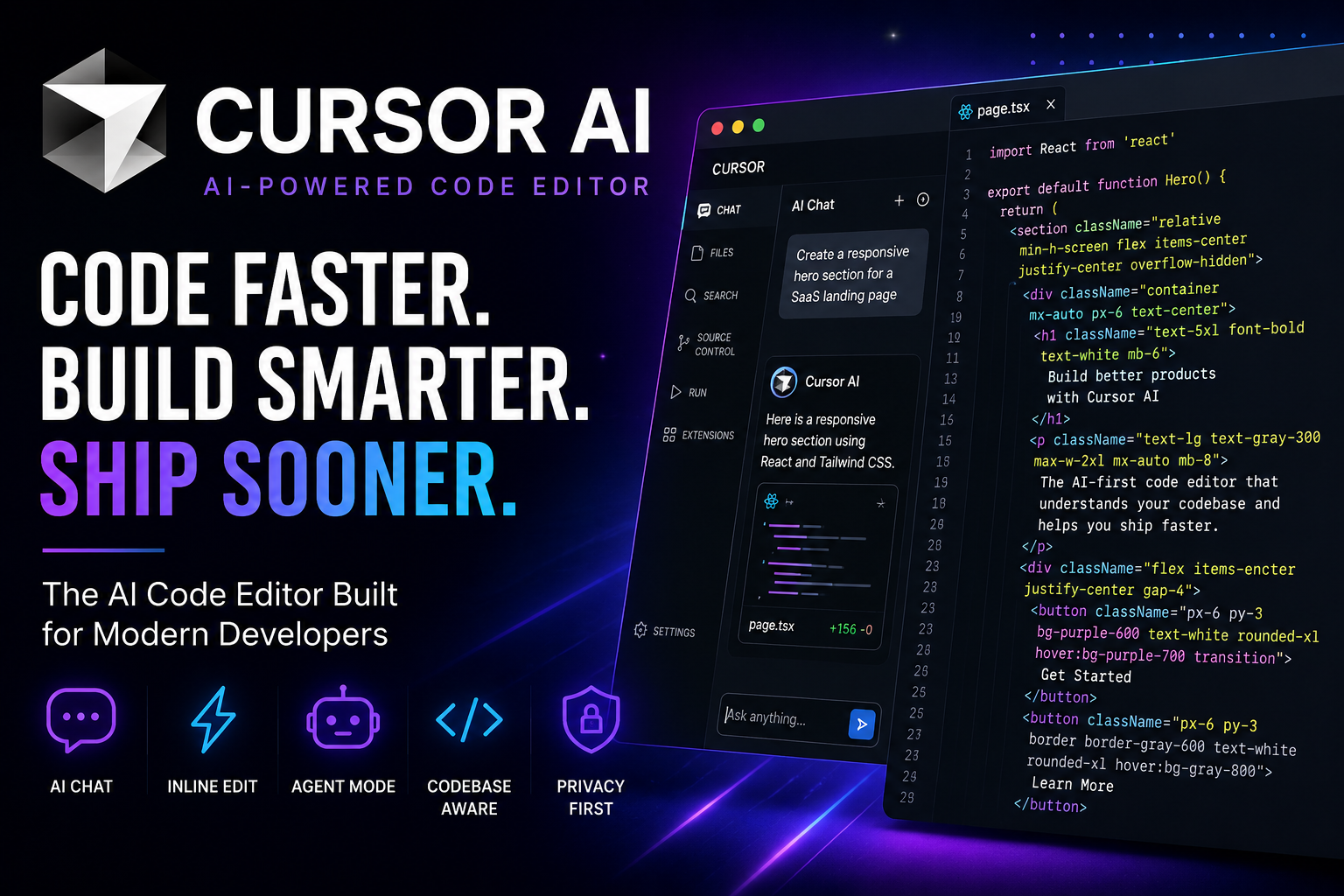
Cursor AI: What It Is, How It Works, and Why Developers Use It

AI tools are changing the way developers write code. Earlier, developers used normal code editors like VS Code and manually searched documentation, fixed bugs, wrote components, and handled refactoring step by step.
Now, tools like Cursor AI help developers write, understand, debug, and improve code faster using artificial intelligence.
Cursor is not just a chatbot. It is an AI-powered code editor where you can open your project, ask questions about your codebase, generate new files, fix errors, refactor code, and even let an AI agent perform multi-step coding tasks.
In this blog, we will understand what Cursor is, how it works, its main features, benefits, limitations, and whether you should use it for real development projects.
What Is Cursor AI?

Cursor AI is an AI-powered code editor built for developers. It looks and feels similar to VS Code, but it has AI deeply integrated inside the editor.
With Cursor, you can:
- generate code from prompts
- edit existing files using natural language
- ask questions about your codebase
- fix bugs
- refactor components
- create new pages and features
- understand unfamiliar code
- use AI agents for larger tasks
Cursor is especially useful for frontend developers, full-stack developers, students, startup builders, and anyone who wants to build software faster.
Instead of only writing code manually, you can explain what you want in plain English, and Cursor can help convert that idea into actual code.
Why Cursor Became Popular

Cursor became popular because it solves a very real developer problem: coding takes time, and many tasks are repetitive.
For example, developers often need to:
- create similar React components
- fix TypeScript errors
- update UI styling
- connect APIs
- write validation logic
- refactor old code
- understand someone else’s code
- debug errors
- write documentation
- update multiple files together
Cursor helps with all these tasks by combining your project context with AI models.
The biggest advantage is that Cursor can understand your current files and project structure. This makes its answers more useful than a normal chatbot where you manually paste code again and again.
Main Features of Cursor AI
Cursor has many features, but the most important ones are:
- AI Chat
- Codebase Understanding
- Inline Editing
- Tab Autocomplete
- Agent Mode
- Rules
- Skills
- MCP Support
- Privacy Mode
- Ignore Files
Let’s understand each feature in simple language.
1. AI Chat

Cursor has an AI chat panel where you can ask questions about your project.
For example, you can ask:
Explain how authentication works in this project.
Or:
Find why the login button is not working.
Or:
Create a new product card component similar to the existing design.
The useful part is that Cursor can use your files as context. So instead of giving generic answers, it can understand your project structure and give more relevant suggestions.
2. Codebase Understanding
Cursor can index your codebase so it can understand your files, folders, functions, components, and relationships.
For example, if you have a React project, Cursor can understand:
- where components are stored
- which files import each other
- where API calls happen
- how routes are structured
- where styling is written
- where types/interfaces are defined
This helps when you ask questions like:
Where is the checkout page logic handled?
Or:
Which component is responsible for the sidebar menu?
Or:
Find all files related to product filtering.
This is very useful in large projects where manually finding files takes time.
3. Inline Editing
Inline editing means you can select code and ask Cursor to change it.
Example:
<button className="bg-blue-500 text-white px-4 py-2">
  Submit
</button>
You can select this code and ask:
Make this button look more premium with hover animation and loading state.
Cursor may update it like this:
<button className="rounded-xl bg-blue-600 px-5 py-2.5 font-medium text-white shadow-md transition-all duration-200 hover:bg-blue-700 hover:shadow-lg disabled:cursor-not-allowed disabled:opacity-60">
  Submit
</button>
This is very useful for UI improvements, refactoring, and quick fixes.
4. Tab Autocomplete
Cursor has smart autocomplete that can suggest code while you type.
For example, if you start writing:
const handleSubmit = async
Cursor may suggest the remaining function based on your current file and project context.
This is different from normal autocomplete because it can suggest multiple lines and understand what you are trying to build.
For repetitive coding tasks, this can save a lot of time.
5. Agent Mode

Agent Mode is one of Cursor’s most powerful features.
Instead of asking Cursor to change one line or one function, you can give it a bigger task.
Example:
Create a complete review system for movies. Add rating stars, user comments, validation, and connect it with the existing movie details page.
Cursor Agent can inspect your project, create or modify multiple files, and try to complete the task step by step.
This is useful for larger tasks like:
- adding a new page
- creating a feature
- fixing multiple related bugs
- refactoring code
- updating UI across files
- connecting frontend logic
- adding validation
- improving TypeScript types
Cursor’s official site describes agents as a way to turn ideas into code and accelerate development by handing off tasks while you focus on decisions.
6. Cursor Rules
Rules are instructions you give Cursor so it follows your project style.
For example, you can create rules like:
Always use TypeScript.
Use functional React components.
Use Tailwind CSS for styling.
Use shadcn/ui components when possible.
Do not create unnecessary files.
Follow the existing folder structure.
This helps Cursor generate code that matches your project.
Cursor’s agent best-practices guide explains that Rules are used for static context that applies to conversations, while Skills are used for dynamic capabilities.
Example .cursor/rules idea:
You are working on a React + TypeScript project.

Project rules:
- Use TypeScript strictly.
- Use Tailwind CSS for styling.
- Keep components small and reusable.
- Do not break existing routes.
- Check existing folder structure before creating new files.
- Match the current UI design style.
- Ask before removing existing code.
Rules are very useful when working on real projects because they reduce random AI-generated code.
7. Cursor Skills
Skills are reusable instructions or workflows that Cursor can use when needed.
For example, you can create a skill for:
- creating React components
- fixing TypeScript errors
- writing tests
- refactoring UI
- creating API integration
- reviewing security issues
- improving performance
Rules are like permanent project instructions.
Skills are like reusable task-specific abilities.
For a production project, Rules + Skills can make Cursor much more consistent.
8. MCP Support
Cursor also supports MCP, which stands for Model Context Protocol.
In simple words, MCP allows Cursor to connect with external tools and data sources.
For example, MCP can help AI tools interact with:
- databases
- APIs
- local tools
- documentation
- development services
- custom internal tools
This is more advanced, but useful for teams that want Cursor to work with their full development workflow.
Cursor’s official documentation includes MCP as part of its supported features.
9. Privacy Mode
Privacy is important when using AI coding tools, especially if you are working with client projects, private repositories, API keys, or business logic.
Cursor has privacy settings. According to Cursor’s data-use page, when Privacy Mode is enabled, zero data retention is enabled for model providers and code is not trained on by Cursor or third parties. If Privacy Mode is turned off, Cursor may use/store codebase data, prompts, editor actions, code snippets, and other code data to improve AI features and train models.
So, before using Cursor on client or company code, you should check:
- Privacy Mode
- Team settings
- data retention policy
- whether codebase indexing is enabled
- which files Cursor can access
A safe habit is to never expose secrets like:
.env
API keys
database passwords
private tokens
payment gateway secrets
service account keys
10. Ignore Files in Cursor
Cursor supports ignore files such as .cursorignore and .cursorindexingignore to control what files Cursor can access or index. Cursor’s ignore-file docs describe these files as a way to control which files Cursor can access.
Example .cursorignore:
.env
.env.*
node_modules
dist
build
.next
coverage
*.log
This is important because you do not want AI tools reading sensitive files.
For most projects, you should add:
.env
.env.local
.env.production
.env.development
Even if your project already has .gitignore, it is safer to create a separate .cursorignore for Cursor-specific protection.
Cursor Pricing

Cursor has different plans for individuals, teams, and enterprises. Its pricing page lists team/enterprise features like cloud agents with shared team context, team-wide rules, skills and automations, SSO options, usage analytics, centralized billing, and enterprise controls.
Pricing can change over time, so always check Cursor’s official pricing page before buying.
For beginners, start with the free or lower plan first. After that, upgrade only if you actually use Cursor daily.
Cursor vs VS Code
Cursor feels similar to VS Code because many shortcuts, extensions, and workflows feel familiar.
But there is one major difference:
VS Code is a traditional code editor. Cursor is an AI-first code editor.
In VS Code, you usually write most code manually and use extensions for help.
In Cursor, AI is built directly into the editor. You can ask it to:
- understand your project
- edit files
- generate components
- debug errors
- refactor code
- explain logic
- create features
So, if you already know VS Code, learning Cursor becomes easier.
Cursor vs GitHub Copilot
GitHub Copilot is mainly known for code completion and chat inside supported editors.
Cursor is a full AI-focused editor. It includes autocomplete, chat, codebase context, inline editing, rules, agent workflows, and project-level AI assistance.
Simple comparison:
| Feature | Cursor | GitHub Copilot |
|---|---|---|
| Type | AI code editor | AI coding assistant/extension |
| Codebase chat | Yes | Yes, depending on setup |
| Inline editing | Yes | Yes |
| Agent workflow | Strong focus | Available in newer workflows |
| VS Code-like experience | Yes | Works inside VS Code |
| Best for | AI-first coding workflow | Developers who want AI inside existing editor |
If you want to keep using VS Code, Copilot is comfortable.
If you want an AI-first editor, Cursor is a strong option.
Best Use Cases for Cursor
Cursor is useful for many types of development work.
1. Building React Components
You can ask:
Create a responsive pricing card component using React, TypeScript, and Tailwind CSS.
2. Fixing Bugs
You can ask:
Find why this form submit is not working and fix the issue without changing the UI.
3. Refactoring Code
You can ask:
Refactor this large component into smaller reusable components.
4. Understanding Code
You can ask:
Explain this file in simple language and tell me how data flows here.
5. Adding Features
You can ask:
Add dark mode support to this dashboard using the existing theme system.
6. Improving UI
You can ask:
Improve this page UI to look more modern and premium, but keep the same functionality.
7. Writing Tests
You can ask:
Write unit tests for this utility function and cover edge cases.
Practical Cursor Prompt Examples
Here are some useful prompts you can use in Cursor.
Prompt for Understanding a Project
Analyze this project structure and explain how the app works. Tell me the main folders, routing system, state management, API flow, and important files.
Prompt for Adding a Feature
Add a review system to the movie details page. Users should be able to add a rating from 1 to 5 stars and write a comment. Keep the design consistent with the existing UI. Do not break existing data fetching logic.
Prompt for Fixing UI
Improve this page UI to look more premium and modern. Add better spacing, smoother hover effects, cleaner cards, and responsive layout. Keep all existing functionality unchanged.
Prompt for Debugging
Find the reason this error is happening. Explain the root cause first, then fix it with the smallest safe change.
Prompt for Refactoring
Refactor this component into smaller reusable components. Keep behavior exactly the same. Do not change API calls or route names.
Prompt for TypeScript Errors
Fix all TypeScript errors in this file. Do not use any unless absolutely necessary. Keep types clean and reusable.
Prompt for Safer AI Changes
Before changing code, inspect related files and explain your plan. Then make only the required changes. Do not remove existing features.
Best Practices for Using Cursor
Cursor can save a lot of time, but you should use it carefully.
1. Give Clear Prompts
Bad prompt:
Fix this.
Better prompt:
Fix the navbar active state issue. Only the current page should be highlighted. Do not change layout or colors.
Clear prompts give better results.
2. Always Review Code
Do not blindly trust AI-generated code.
Before accepting changes, check:
- Does the code compile?
- Does the feature work?
- Did it remove anything important?
- Did it add unnecessary files?
- Did it break existing logic?
- Are secrets exposed?
- Are types correct?
3. Use Git Before Big Changes
Before asking Cursor to make large changes, commit your current code.
Example:
git add .
git commit -m "Before Cursor changes"
This way, if Cursor breaks something, you can easily go back.
4. Use Small Tasks
Instead of asking Cursor to build a huge feature in one prompt, break it into smaller tasks.
Bad:
Build full ecommerce website.
Better:
First create product card component.
Then create product listing grid.
Then add category filter.
Then connect product data.
Small tasks are easier to review and fix.
5. Protect Secrets
Never allow AI tools to access secret files.
Add this to .cursorignore:
.env
.env.*
*.pem
*.key
secrets.json
service-account.json
This is very important for client and production projects.
Advantages of Cursor
Cursor has many advantages:
- Speeds up development
- Helps understand large codebases
- Good for React, Next.js, Node.js, Flutter, and many other projects
- Useful for bug fixing
- Useful for refactoring
- Can improve UI faster
- Helps beginners learn code
- Can generate boilerplate quickly
- Can work across multiple files
- Feels familiar if you know VS Code
Disadvantages of Cursor
Cursor is powerful, but it is not perfect.
Some disadvantages are:
- It can generate wrong code
- It may over-edit files
- It can misunderstand your request
- It may add unnecessary complexity
- It may break existing logic
- You still need coding knowledge
- Privacy settings must be checked carefully
- Large tasks can be expensive depending on usage
- AI-generated code still needs testing
So Cursor should be treated as a coding assistant, not a replacement for a developer.
Is Cursor Good for Beginners?
Yes, Cursor can be very helpful for beginners.
It can explain code, fix errors, and show examples.
For example, a beginner can ask:
Explain this React component line by line in simple language.
Or:
Why am I getting this TypeScript error?
But beginners should not only copy-paste code. They should also try to understand what Cursor generates.
Cursor is best when used as a learning assistant and productivity tool.
Is Cursor Good for Professional Developers?
Yes, Cursor is useful for professional developers too.
Experienced developers can use Cursor for:
- faster prototyping
- refactoring
- code review
- writing tests
- generating boilerplate
- debugging
- documentation
- exploring unfamiliar codebases
- improving developer productivity
Professional developers still need to review architecture, security, performance, and business logic themselves.
Should You Use Cursor?
Use Cursor if you want:
- faster coding
- AI help inside your editor
- better codebase understanding
- quick UI improvements
- faster debugging
- better productivity
- help with large projects
- agent-based coding workflows
Avoid depending on Cursor blindly if:
- you do not review generated code
- you work with highly sensitive code without checking privacy settings
- you expect AI to always be correct
- you do not use Git/version control
- you cannot test the generated changes
Final Verdict
Cursor AI is one of the most useful AI coding tools for modern developers.
It combines a familiar code editor experience with powerful AI features like chat, autocomplete, inline editing, codebase understanding, rules, skills, and agents.
For small tasks, Cursor can save minutes.
For large projects, Cursor can save hours.
But it still needs a developer to guide it, review the output, test the changes, and protect sensitive files.
In simple words:
Cursor does not replace developers. It helps developers work faster.
If you are building React, Next.js, Node.js, Flutter, or full-stack projects, Cursor is definitely worth trying.
FAQ
What is Cursor AI?
Cursor AI is an AI-powered code editor that helps developers write, edit, debug, and understand code faster.
Is Cursor better than VS Code?
Cursor is better if you want an AI-first coding workflow. VS Code is better if you want a traditional editor with extensions.
Is Cursor free?
Cursor has different plans, including individual and team options. Pricing can change, so check the official Cursor pricing page before subscribing.
Can Cursor build a full app?
Cursor can help build large parts of an app, but you still need to review, test, and guide the work.
Is Cursor safe for client projects?
It can be used for client projects, but you should check Privacy Mode, ignore sensitive files, and never expose API keys or secrets.
Does Cursor support React?
Yes. Cursor works very well with React, Next.js, TypeScript, Tailwind CSS, and many modern frontend stacks.
Can Cursor fix bugs?
Yes. Cursor can help find and fix bugs, but you should always test the result.
Should beginners use Cursor?
Yes, beginners can use Cursor to learn faster, but they should understand the generated code instead of blindly copying it.
PlayerRAMBO on YouTube
Subscribe for recommendations, tech, and more.
Comments
Loading comments…